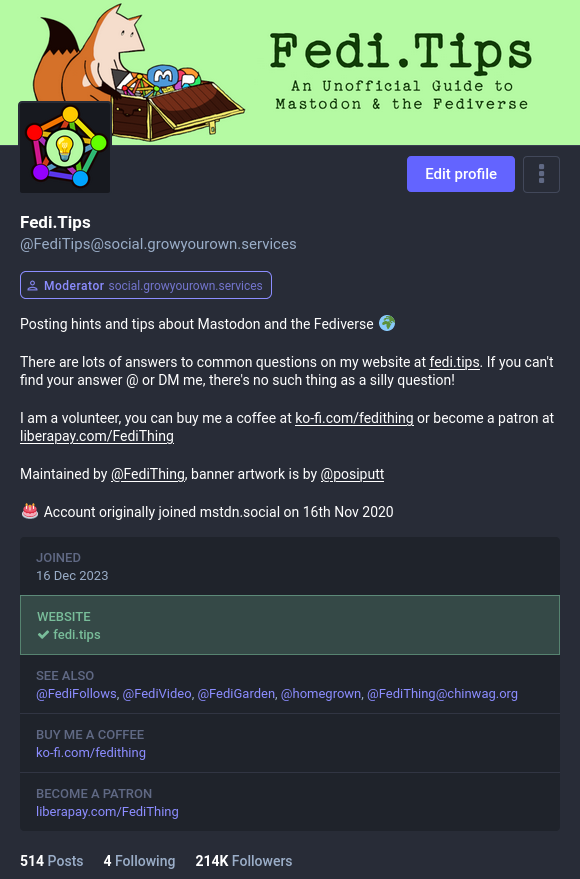
On your profile page you can set your display name, picture, banner image and short text (also known as a “biog”) about yourself.
How do I customise my profile page?
The instructions below are for editing a profile page through the official web interface, you can also edit your profile on mobile apps but the exact button names may be different.+-
- Sign in on your server’s website and click on your account’s name or profile picture go to your profile page (see below if you’re unsure how to do this)
- Click Edit Profile
- Click an “Add” button to add a particular part of your profile, click a pencil icon ✏️ to edit something you’ve already added. Click the “Save” button to finish adding or editing that part of the profile.
- To add a profile image click on the camera icon 📷️ next to the smaller blank image. To add a banner image click on the camera icon 📷️ next to the larger blank image.
- When you’ve finished adding and editing things, click the “Done” button at the top of the page and your profile will be updated.
How do I go to my profile page?
If you’ve already set a profile image, you should be able to just click on the icon that looks like your profile image to get to your profile. Your profile image is visible on the website and all the apps, usually in one of the corners of the screen.
If you haven’t set a profile image, the icon for your profile will normally be some kind of blank sihouette, depending on what you’re using to access Mastodon.
It’s really important to fill in your profile’s display name and text description!
Your profile’s display name and text description (also known as a “bio” or “biog”) are the two most important parts of your profile page. The display name makes your profile memorable and can be up to 40 characters. The profile text tells people what your account is about, and avoids them having to do detective work on your feed to find out what kind of stuff you post. The profile text also makes your profile accessible to people who are blind or have low vision.
Profile text is crucial if you want to attract more followers. All the words in a profile are searchable in Mastodon, so people will see your account in search results for the words in your profile. Also, the first line of the profile text is used in many of Mastodon’s discovery systems, so it’s particularly important that the first line of the text sums up your account well.
Profile text is also useful if you want to restrict who follows you. Accounts that screen followers can provide details of who they accept follows from (e.g. “I only accept follows from people I know” etc) to reduce the number of unwanted follow requests.
Upload a profile picture and banner
You can upload or change the profile image and banner for your account on the Edit profile page by clicking the 📷️ icons. However, images aren’t as important as the text, and many blind or low vision people do not use profile images at all.
The images can be JPG, PNG or GIF files up to 8 megabytes in size. Pictures will be downscaled to 400×400 pixels, banners will be downscaled to 1500×500 pixels. GIFs and PNGs can be animated, though some people’s settings may prevent the animation playing when they look at your profile.
⚠️ WARNING: Do not use rapidly flashing animations on your profile images. These can be physically extremely dangerous to people with certain neurological conditions, and people may see these accidentally when viewing your profile’s web page while browsing the internet.
Fill in your Mastodon profile’s Custom Fields
On Mastodon, there’s a special section of profiles called “Custom Fields” which let you add clearly labelled links or additional info that you want to highlight about yourself. (Custom Fields were previously known as “Extra Fields”.)
For example, you could have a Custom Field with the label saying “My website” in one box and the value “https://example.com”. Or “My other accounts” and links to your other account addresses on the Fediverse. Or you could have a label “Favourite pizza” and the value being a pineapple emoji. It’s totally up to you how you use this feature.
If you add a website link in your extra fields, it’s important to include https:// at the beginning of the address so that it is clickable. If it is your website, you can optionally verify it to prove you are the owner of the site.
Custom Fields appear as prominent boxes on the website version of Mastodon, and are displayed in various ways on different mobile apps.
To add or edit your profile’s Extra Fields through the website:
- Log in through your server’s website
- Click on your profile image to go to your profile page
- Click Edit profile, then go to the Custom Fields section of the profile editor. Click Add Field to add a new field, or click the pencil ✏️ next to an existing field to edit it, or click the rubbish bin 🗑️ next to an existing field to delete it, or click Reorder Fields to rearrange existing fields.
- Fill in up to four labels and values. The labels can be text or emoji, the content can be links, text or emoji. If you do put links in, remember to put the https:// at the start so that they are clickable.
- Click the “Done” button at the top of the page
You can also add and edit your profile’s Custom Fields through mobile apps, which have various interfaces for doing this, usually accessed through your profile page, or sometimes through the app’s settings.
Can I change my profile name?
You can change your profile’s display name (the name at the top of the profile) but you can’t change your profile’s account address (your handle).
Verifying your account
Verification on Mastodon is mainly aimed at people or organisations who have their own website. The verification process verifies that the account owner also owns the website, click here for more info about how to do this verification process.
How to add video, audio, images and even more text to your profile
If you want to greatly expand the introductory material on your profile page, try creating a post with the extra material and pin it to your profile. Pinned posts will always appear at the top of the profile for everyone who browses it, and you can pin up to five posts on a single profile. You can also reply to your own pinned posts to create pinned threads which can be as long as you want.
Pinned posts are particularly useful if you want to let people know about images, video or audio you have created, as media can be attached to posts. Artists often use them as portfolios on their profile.
If you create an introductory post about yourself, you might want to also include the hashtag #Introduction as this is the most widely used tag for new people introducing themselves. Introductions are really good posts to pin on profiles.
How can I make my profile’s posts private?
You can optionally lock down your profile so only your followers can see your posts. To do this you need to do two things:
- Restrict who can follow your account
- Set your default posting visibility to “Followers only”
If you do both these things, any followers you get after that will need your approval, and any posts you make after that will only be visible to your followers. Also, on some interfaces and apps a 🔒 padlock will appear next to your profile name to show you have restricted who can follow you.
⚠️ NOTE: Any posts you make (or previously made) with public or quiet public visibility will still be visible on your profile page. Only posts with “followers only” visibility will be hidden from non-followers. Also, your actual profile stays visible regardless of these settings, so whatever you do you need to remove any information from it that you don’t want public.
Should I add emoji to my profile name?
You can add emoji to your profile name, but bear in mind a couple of things:
- If you use lots of emoji next to each other, they will make your name inaccessible to people with screen readers because the reader says each emoji out loud and some of them have very long descriptions. One emoji is usually accessible though.
- Custom emoji aren’t guaranteed to work on profile names. Custom emoji are designed for use in posts and profile descriptions, they may display incorrectly in names on some interfaces and apps.